The Apple Technologies Using iPhone and Mac Together
Apple has a suite of features known as Continuity that allow your iPhone and Mac to work together as if they were a single device.
iPhone Mirroring
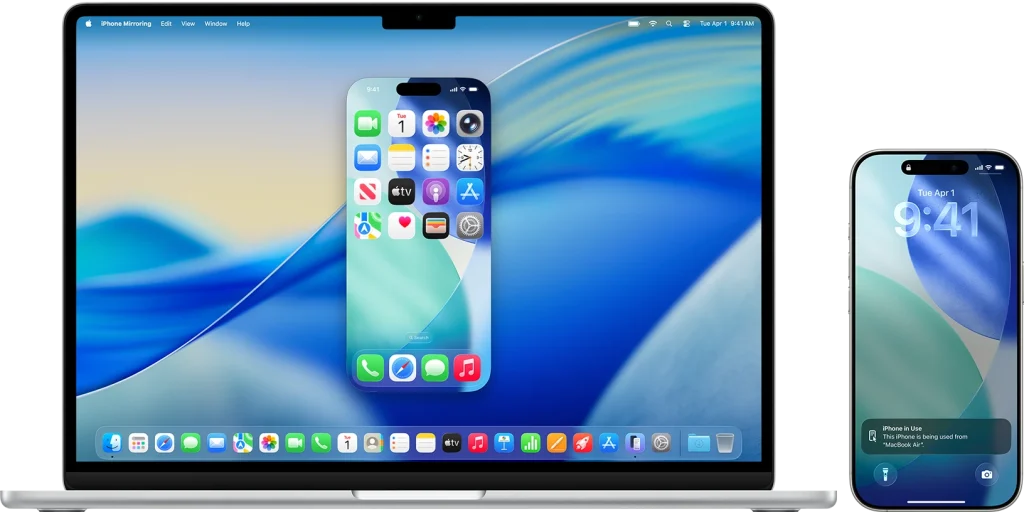
Introduced in macOS Sequoia and enhanced in macOS Tahoe, this is the flagship “together” feature.
- Full Remote Control: You can view and control your iPhone screen directly from your Mac desktop. You can use your Mac’s keyboard and trackpad to navigate iPhone apps, even if your iPhone is in your pocket or charging in another room.
- Live Activities on Mac: Your iPhone’s Live Activities (like Uber arrival times or sports scores) now appear directly in the Mac’s Menu Bar or Widgets.
- Drag and Drop: You can move photos, videos, and files seamlessly between your Mac and the mirrored iPhone window.
iPhone Mirroring System Requirements
iPhone Mirroring can be used with only one Mac and one iPhone at a time.
- Your computer must be a Mac with Apple silicon or a Mac with the Apple T2 Security Chip and must be using macOS Sequoia 15 or later. Live Activities on Mac requires macOS Tahoe 26 or later.
- Your iPhone must be using iOS 18 or later and is set up to use a passcode. Your iPhone and Mac are signed in to the same Apple Account using two-factor authentication.
- Your iPhone and Mac must have Bluetooth and Wi-Fi turned on.
- Your iPhone must be locked and near your Mac. It can also be charging and using StandBy.
- Your Mac must not be sharing its internet connection or using AirPlay or Sidecar.
Important: To use iPhone Mirroring, it must be available in your country or region. iPhone Mirroring is currently unavailable in the European Union.
Apple Documentation: https://support.apple.com/en-us/120421
Continuity Camera
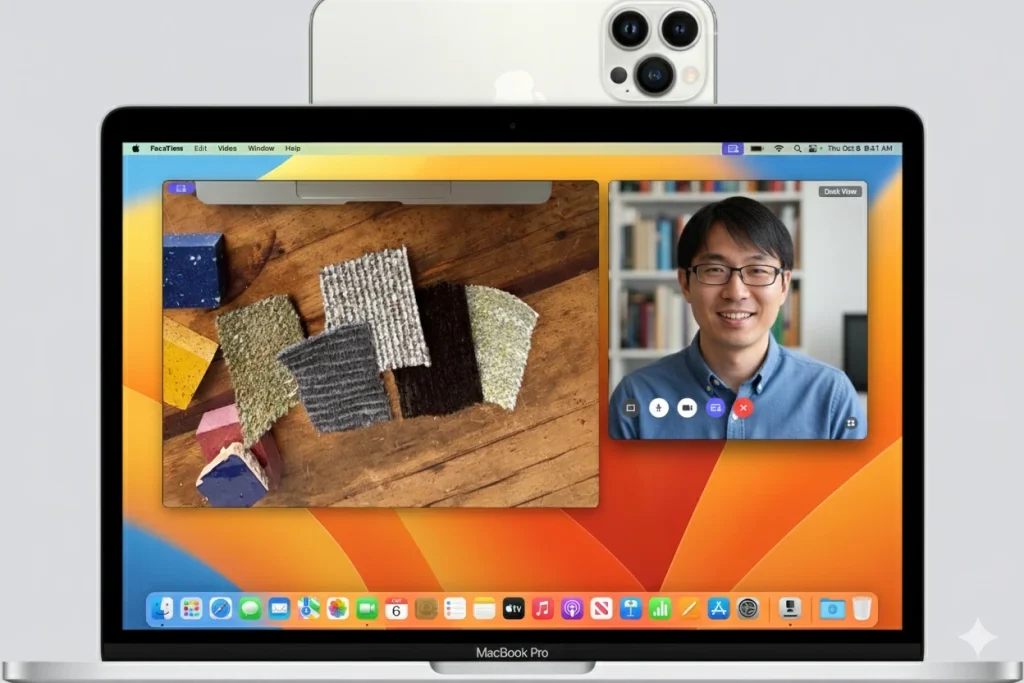
Your iPhone has a much better lens than your MacBook’s built-in webcam. This feature lets your Mac “borrow” the iPhone’s eyes.
- Webcam Mode: Use your iPhone as a wireless 4K webcam for Zoom, FaceTime, or Teams.
- Desk View: Using the Ultra Wide lens, your iPhone can simultaneously show your face and a top-down view of your desk (perfect for tutorials or sketching).
- Studio Light & Center Stage: Your iPhone’s processor handles lighting effects and keeps you centered in the frame even if you move around.
Continuity Camera System Requirements
- Your iPhone and Mac must be signed in to the same Apple Account using two-factor authentication.
- Your iPhone must have Continuity Camera turned on (it’s on by default). To check, open Settings, tap General, then tap AirPlay & Continuity (or AirPlay & Handoff).
- Your iPhone and Mac must be near each other and have Bluetooth and Wi-Fi turned on.
- Your iPhone mustn’t be sharing its cellular connection, and your Mac is not sharing its internet connection.
- To use Continuity Camera wirelessly, your Mac mustn’t be using AirPlay or Sidecar.
- To use Continuity Camera over USB, your iPhone must be set to trust your Mac.
- Some video effects and mic modes must have other requirements.
Apple Documentation: https://support.apple.com/en-us/102546
Universal Clipboard
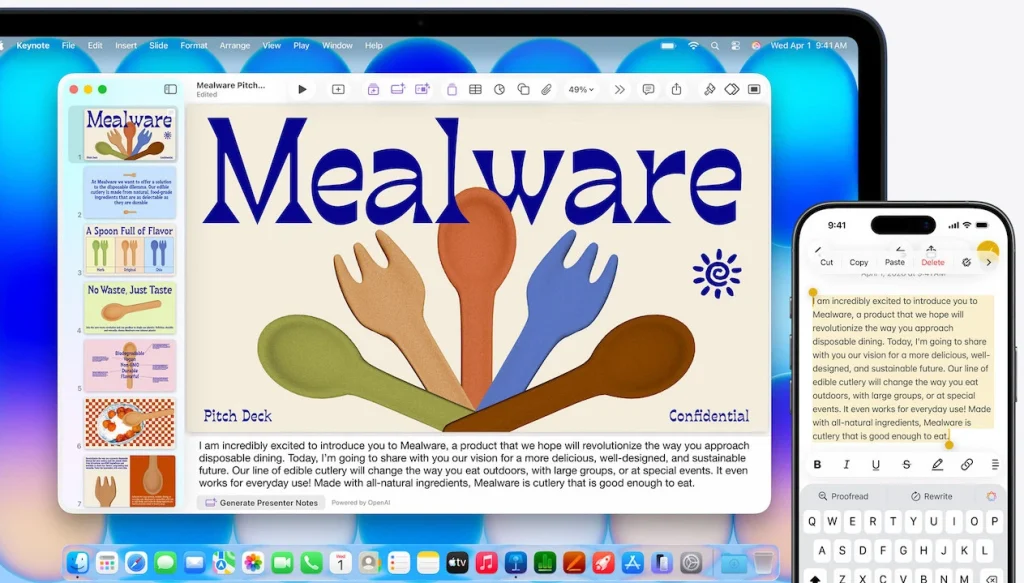
Copy & Paste: Copy text, an image, a video, or a link on your iPhone, and simply press Cmd + V on your Mac or iPad to paste it there instantly. It works both ways and feels like they share a single memory.
Universal Clipboard System Requirements
iOS 10 or later, or iPadOS (all versions)
- iPhone 5 or later
- iPad Pro (all models)
- iPad (4th generation) or later
- iPad Air (all models)
- iPad mini 2 or later
- iPod touch (6th generation) or later
macOS Sierra 10.12 or later
To use Universal Clipboard to copy entire files from one Mac to another, each Mac requires macOS High Sierra 10.13 or later.
- Mac Pro introduced in 2013 or later
- All other Mac models introduced in 2012 or later
visionOS (all versions)
- Apple Vision Pro (all models)
Apple Documentation: https://support.apple.com/en-us/102430
Handoff
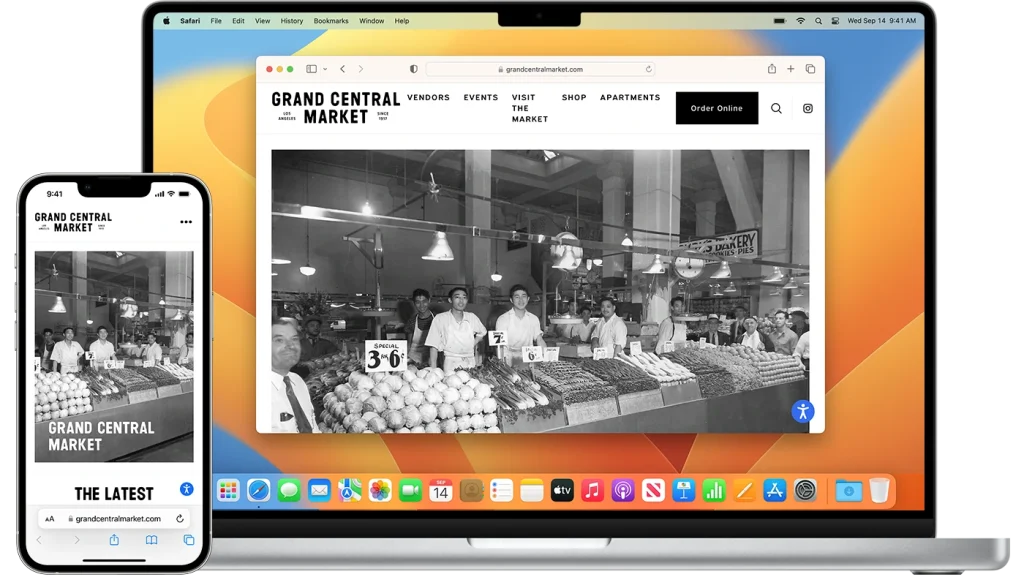
Allows you to start a task on one device and finish it on another.
Seamless Transition: If you start writing an email or browsing a website in Safari on your iPhone, an icon appears in your Mac’s Dock. Clicking it opens that exact page or draft on your computer.
Handoff System Requirements
iOS 8 or later, or iPadOS (all versions)
Handing off a FaceTime call requires iOS 16 or later, or iPadOS 16 or later.
- iPhone 5 or later
- iPod touch (5th generation) or later
- iPad Pro (all models)
- iPad (4th generation) or later
- iPad Air (all models)
- iPad mini (all models)
OS X Yosemite 10.10 or later
Handing off a FaceTime call requires macOS Ventura 13 or later.
- MacBook introduced in 2015 or later
- Mac Pro introduced in 2013 or later
- All other Mac models introduced in 2012 or later
watchOS (all versions)
- Apple Watch (all models)
Apple Documentation: https://support.apple.com/en-us/102426
Instant Hotspot
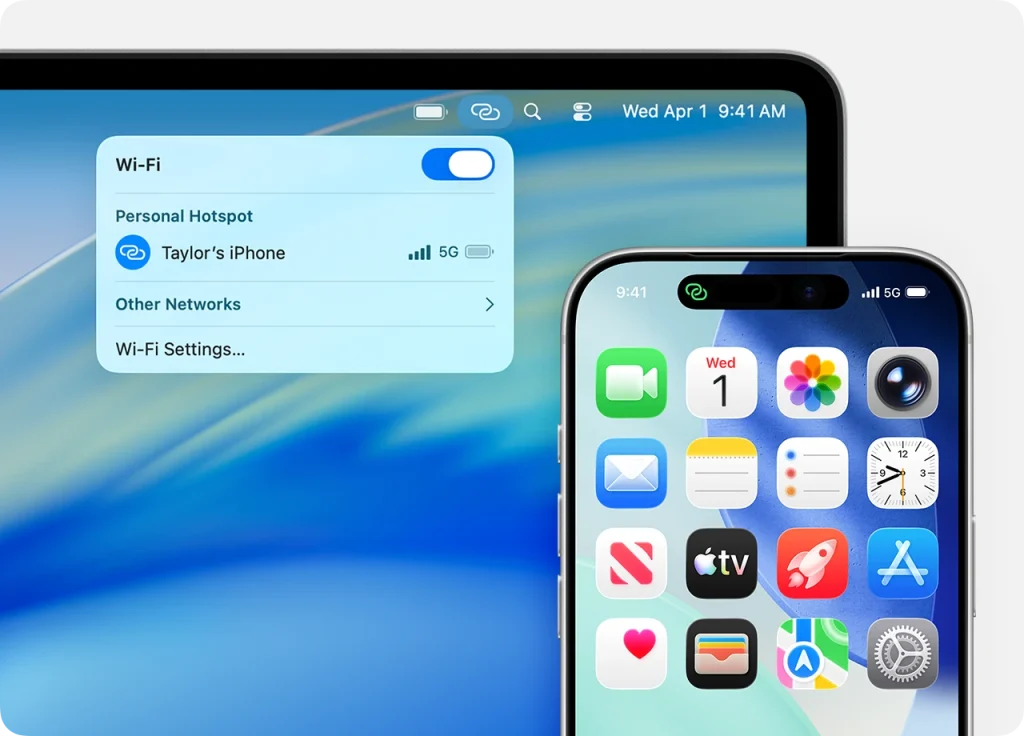
If you are traveling and have no Wi-Fi, your Mac can remotely wake up your iPhone’s Personal Hotspot.
No Password Needed: You don’t even have to touch your phone; you just select your iPhone from the Wi-Fi menu on your Mac. It even shows your phone’s battery life and signal strength in the Mac’s menu bar.
Instant Hotspot System Requirements
Requirements for the device providing the hotspot
iOS 8.1 or later, or iPadOS (all versions)
The iPhone or iPad must have an activated carrier plan providing Personal Hotspot service.
- iPhone 5 or later
- iPad Pro (all models)
- iPad (4th generation) or later
- iPad Air (all models)
- iPad mini (all models)
Requirements for the device connecting to the hotspot iOS 8 or later, or iPadOS (all versions)
- iPhone 5 or later
- iPod touch (5th generation) or later
- iPad Pro (all models)
- iPad (4th generation) or later
- iPad Air (all models)
- iPad mini (all models)
OS X Yosemite 10.10 or later
- MacBook introduced in 2015 or later
- Mac Pro introduced in 2013 or later
- All other Mac models introduced in 2012 or later
visionOS (all versions)
- Apple Vision Pro (all models)
Apple Documentation: https://support.apple.com/en-us/109321