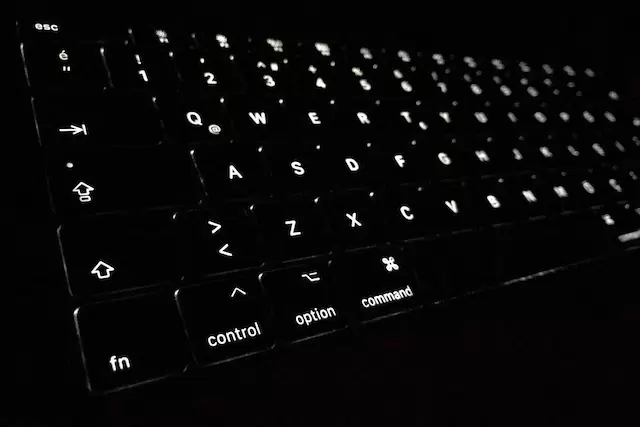
You can speed up tasks performed in Google Chrome using keyboard shortcuts. Review the Chrome browser shortcuts for Windows, Linux, and Mac operating systems in the table below.
Google Chrome Shortcuts for Windows and Linux Operating Systems
Windows & Linux Chrome Tab and Window Shortcuts
Shortcut
Description
Ctrl + N
Opens a new Chrome window.
Ctrl + Shift + N
Opens a new Chrome window in incognito mode.
Ctrl + T
Opens a new Chrome tab and switches to the newly opened tab.
Ctrl + Shift + T
Reopens closed Chrome tabs in the order they were closed.
Ctrl + Tab or Ctrl + Page Down
Switches to the tab to the right of the current tab.
Ctrl + Shift + Tab or Ctrl + Page Up
Switches to the tab to the left of the current tab.
Ctrl + 1 … Ctrl + 8
Navigates to the tab with the specific number among the open tabs.
Ctrl + 9
Moves to the last of the open tabs.
Alt + Left Arrow Key
Navigates to the previous page from the currently open page.
Alt + Right Arrow Key
Navigates from the currently open page to the next page.
Ctrl + W or Ctrl + F4
Closes the open tab.
Ctrl + Shift + W or Alt + F4
Closes all open tabs and the window.
Google Chrome Feature Shortcuts for Windows & Linux
Shortcut
Description
Ctrl + Shift + B
Hides or shows bookmarks.
Ctrl + Shift + O
Opens the page where bookmarks are managed.
Ctrl + H
Opens the history list in a new tab.
Ctrl + J
Opens the downloads page in a new tab. (Chrome downloads shortcut)
Ctrl + F veya F3
Opens the search bar on the current page.
Ctrl + G
Navigates to the next item among the data in the search bar.
Ctrl + Shift + G
Switches to the previous item among the data in the search bar.
Ctrl + Shift + J veya F12
It opens the developer tool that is, the Google Inspect tool.
Ctrl + Shift + Delete
Opens the screen for clearing Chrome data (history, cookies, cached files) in a new tab.
Ctrl + Shift + M
Opens the screen where a selection can be made from among the accounts of other browser users.
Windows & Linux Chrome Address Bar Shortcuts
Shortcut
Description
Search Engine URL + Tab
For websites that support on-site search, the page that opens after entering the URL, pressing the Tab key, and then typing and submitting a search query is the results page for that query.
Selection with Down Arrow Key + Shift + Delete
Deletes the links suggested in the search bar.
Windows & Linux Chrome Web Page Shortcuts
Shortcut
Description
Ctrl + P
Opens the print settings for the current page.
Ctrl + S
Opens the settings for saving the current page.
F5 or Ctrl + R
Reloads the current page.
Shift + F5 or Ctrl + Shift + R
Reloads the page by deleting the cached version of the current page.
ESC
Stops the page from loading.
Tab
Navigates between clickable elements on the page.
Shift + Tab
Navigates backwards through the clickable elements on the page.
Ctrl + O
It allows the user to select the file to be opened in Google Chrome from the computer’s directory.
Ctrl + U
Displays the HTML source code of the current web page.
Ctrl + D
Adds the current page to bookmarks.
Ctrl + Shift + D
Adds all open tabs in the window as bookmarks in a new file.
F11
Switches the Chrome window to or from full-screen mode.
Ctrl and +
Zooms in on the page view.
Ctrl and –
Reduces the size of the page view.
Ctrl + 0
Resets the page display size to the default.
Space or PageDown
Scrolls the page down.
Shift + Space or PageDown
Scrolls the page upwards.
Home
Goes to the top of the page.
End
Goes to the bottom of the page.
Ctrl + Left Arrow Key
Moves the cursor to the beginning of the previous word in the text input area.
Ctrl + Right Arrow Key
Moves the cursor to the beginning of the next word in the text input area.
Ctrl + Backspace
Deletes the word preceding the cursor’s position in the text input area.
Alt + Home
Opens the home page in the current tab.
Windows & Linux Google Chrome Mouse Shortcuts
Shortcut
Description
Double-click the empty space on the tab bar.
Double-clicking the empty space on the tab bar maximizes or minimizes the window.
Ctrl + Clicked Link
When you click a link on the page while holding down the Command key, the link opens in a new tab.
Ctrl + Shift + Clicked Link
When you click a link on the page while holding down the Command key, the link opens in a new tab and switches to that tab.
Dragging a link on the page to the new tab bar
When any link on the current page is dragged to the new tab area, the link opens in a new tab.
Shift + Clicked Link
When you click a link on the page while holding down the Shift key, the link opens in a new window.
Moving the Tab Outside the Tab Bar
If a tab is dragged outside the tab bar with the mouse, the tab opens as a new window.
Moving a Tab from Another Window to a New Tab
Tabs can be moved between two different open windows.
ESC Key While Dragging a Tab
If the ESC key is pressed while moving the tab, the tab returns to its previous location.
Alt + Clicked Link
Downloads the clicked link.
Ctrl + Scroll Mouse Wheel Forward
Zooms in on the page
Ctrl + Scroll Mouse Wheel Backwards
Zooms out on the page
Chrome Shortcuts for macOS
macOS Chrome Tab and Window Shortcuts
Shortcut
Description
⌘ + N
Opens a new Chrome window.
⌘ + Shift + N
Opens a new Chrome window in incognito mode.
⌘ + T
Opens a new Chrome tab and switches to the newly opened tab.
⌘ + Shift + T
Reopens closed Chrome tabs in the order they were closed.
⌘ + Option + Right Arrow Key
Switches to the tab to the right of the current tab.
⌘ + Option + Left Arrow Key
Switches to the tab to the left of the current tab.
⌘ + 1 … ⌘ + 8
Navigates to the tab with the specific number among the open tabs.
⌘ + 9
Moves to the last of the open tabs.
⌘ + Left Arrow Key
Navigates to the previous page from the currently open page.
⌘ + Right Arrow Key
Navigates from the currently open page to the next page.
⌘ + W
Closes the open tab.
⌘ + Shift + W
Closes all open tabs and the window.
⌘ + M
Minimizes the window. (On macOS, this shortcut does not work if the window is open in full-screen mode.)
⌘ + H
Hides the Google Chrome screen. (This shortcut does not work on macOS if the window is open in full-screen mode.)
⌘ + Q
Completely closes the Google Chrome application.
Shortcuts for Google Chrome Features on macOS
Shortcut
Description
⌘ + Shift + B
Hides or shows bookmarks.
⌘ + Option + B
Opens the page where bookmarks are managed.
⌘ + ,
Opens the Chrome settings page in a new tab.
⌘ + Y
Opens the history list in a new tab.
⌘ + Shift + J
Opens the downloads page in a new tab. (Chrome downloads shortcut)
⌘ + F
Opens the search bar on the current page.
⌘ + G
Navigates to the next item among the data in the search bar.
⌘ + Shift + G
Switches to the previous item among the data in the search bar.
⌘ + E
Searches for a word selected with the mouse while the search bar is open.
⌘ + Option + i
It opens the developer tool that is, the Google Inspect tool.
⌘ + Shift + Delete
Opens the screen for clearing Chrome data (history, cookies, cached files) in a new tab.
⌘ + Shift + M
Opens the screen where a selection can be made from among the accounts of other browser users.
Control + F2
Switches to the main menu bar.
macOS Chrome Address Bar Shortcuts
Shortcut
Description
⌘ + L
Switches to the address bar.
Website Address + ⌘ + Enter
Opens the website to be searched in a new tab.
Selection with Down Arrow Key + Shift + Fn + Delete Key
Deletes the links suggested in the search bar.
Search Engine URL + Tab
For websites that support on-site search, the page that opens after entering the URL, pressing the Tab key, and then typing and submitting a search query is the results page for that query.
macOS Chrome Web Page Shortcuts
Shortcut
Description
⌘ + P
Opens the print settings for the current page.
⌘ + S
Opens the settings for saving the current page.
⌘ + R
Reloads the current page.
⌘ + Shift + R
Reloads the page by deleting the cached version of the current page.
Esc
Stops the page from loading.
Tab
Navigates between clickable elements on the page.
Shift + Tab
Navigates backwards through the clickable elements on the page.
⌘ + O
It allows the user to select the file to be opened in Google Chrome from the computer’s directory.
⌘ + Option + U
Displays the HTML source code of the current web page.
⌘ + Option + J
Inspect üzerinde Javascript konsolunu açar.
⌘ + D
Adds the current page to bookmarks.
⌘ + Shift + D
Adds all open tabs in the window as bookmarks in a new file.
⌘ + Ctrl + F
Switches the Chrome window to or from full-screen mode.
⌘ ve +
Zooms in on the page view.
⌘ ve –
Zooms out on the page view.
⌘ + 0
Resets the page display size to the default.
Space
Scrolls the page down.
Shift + Space
Scrolls the page upwards.
⌘ + Option + F
Performs a Google search in the current page’s search bar.
Option + Left Arrow Key
Moves the cursor to the beginning of the previous word in the text input area.
Option + Right Arrow Key
Moves the cursor to the beginning of the next word in the text input area.
Option + Delete
Deletes the word preceding the cursor’s position in the text input area.
⌘ + Shift + H
Opens the home page in the current tab.
macOS Google Chrome Mouse Shortcuts
Shortcut
Description
⌘ + Clicked Link
When you click a link on the page while holding down the Command key, the link opens in a new tab.
⌘ + Shift + Clicked Link
When you click a link on the page while holding down the Command key, the link opens in a new tab and switches to that tab.
Dragging a link on the page to the new tab bar
When any link on the current page is dragged to the new tab area, the link opens in a new tab.
Shift + Clicked Link
When you click a link on the page while holding down the Shift key, the link opens in a new window.
Moving the Tab Outside the Tab Bar
If a tab is dragged outside the tab bar with the mouse, the tab opens as a new window.
Moving a Tab from Another Window to a New Tab
Tabs can be moved between two different open windows.
ESC Key While Moving a Tab
If the ESC key is pressed while the tab is being moved, the tab returns to its original location.
Moving the Link in the Address Bar to Bookmarks
When the link in the address bar is dragged and dropped onto the bookmarks bar, it is saved as a bookmark.